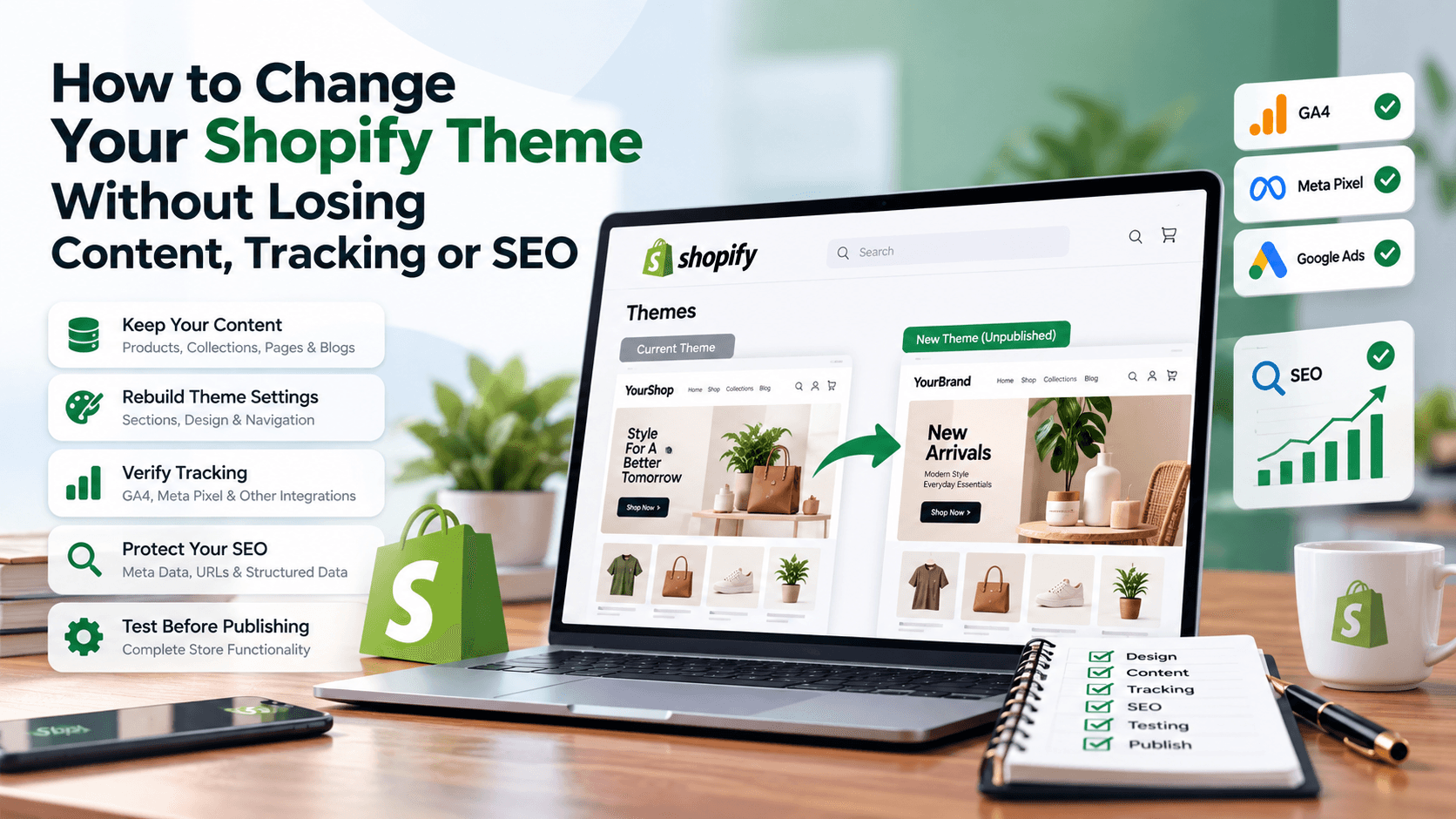

Changing your Shopify theme can give your online store a completely new appearance, improve navigation and create a better shopping experience. However, changing a theme should not be treated as a simple design update.
Your Shopify store depends on several connected elements, including products, collections, navigation, custom sections, app integrations, tracking systems, SEO settings and checkout-related functionality.
Knowing how to change your Shopify theme safely can help you protect these important elements while moving to a new design.
The safest approach is to prepare the new theme as an unpublished theme, recreate theme-specific content carefully, verify tracking and SEO elements, test the complete customer journey and publish only after everything works correctly.
Quick Answer: How Do You Change a Shopify Theme Without Losing SEO?
To change your Shopify theme without losing SEO:
- Keep your existing URLs wherever possible.
- Duplicate and retain your current theme.
- Build the new theme without publishing it.
- Recreate theme-specific sections and settings.
- Reconnect app blocks and embeds.
- Verify analytics and advertising tracking.
- Check metadata, headings and canonical tags.
- Test structured data.
- Test products, cart, checkout and mobile usability.
- Publish during a monitored period.
- Keep the previous theme available as a rollback option.
A theme change should be handled like a small website launch rather than simply clicking Publish.
What Happens When You Change Your Shopify Theme?
Your Shopify theme controls how your storefront presents information to visitors.
When you change themes, important store data such as products, collections, pages, menus and blog posts normally remains stored within Shopify. However, many design elements and configurations belong specifically to the theme you are using. Pasted text
This distinction is important.
| Store Element | What to Check |
| Products and collections | Content remains, but verify how the new theme displays it |
| Pages and blog posts | Content remains, but layouts may appear differently |
| Navigation menus | Menus remain, but they may need to be assigned to the correct theme locations |
| Homepage sections | Theme-specific sections may need to be rebuilt |
| Banners and promotional content | Verify content, images and links |
| Colours and typography | Configure them in the new theme |
| Custom templates | Rebuild or adapt where required |
| Custom code | Review compatibility with the new theme |
| App blocks | Reconnect and test placement |
| Tracking | Verify the installation method and event tracking |
Because of these differences, a Shopify theme migration requires planning.
Step 1: Duplicate and Save Your Current Shopify Theme
Before making major changes, duplicate your currently published theme.
A duplicate gives you a reference copy of your existing design and provides a useful fallback if you need to compare settings or return to your previous storefront.
Give the duplicated theme a clear name.
For example:
Current Theme Backup – 02 October 2026
Also record important information from your existing store:
- Screenshots of important pages
- Homepage sections
- Promotional banners
- Custom text
- Header and footer layout
- Theme settings
- Custom code
- App blocks
- App embeds
- Tracking IDs
- Important URLs
- Current SEO settings
Shopify recommends duplicating your theme before making major customizations. Pasted text
Important: A Theme Duplicate Is Not a Complete Shopify Backup
Duplicating your theme does not create a complete backup of your Shopify store.
It does not independently back up everything related to:
- Orders
- Customers
- App data
- External integrations
- Business records
Use appropriate exports, third-party backup arrangements or business data retention processes where required.
Step 2: Record Your Current Website Performance
Before changing the design, create a performance baseline.
This allows you to compare the store before and after launch.
Record information from platforms such as:
- Shopify Analytics
- Google Analytics 4
- Google Search Console
- Google Ads
- Meta Ads Manager
Useful metrics include:
- Organic traffic
- Top landing pages
- Conversion rate
- Add-to-cart rate
- Checkout completion rate
- Revenue
- Product page engagement
- Key conversion events
Also record the date when the new theme goes live.
If traffic or sales change later, this information can help you investigate the cause more accurately.
A traffic decline does not automatically mean that the new theme caused an SEO issue. Seasonal demand, advertising activity, ranking changes and other factors may also influence performance.
Step 3: Add the New Shopify Theme Without Publishing It
Do not immediately replace your live theme.
Add the new theme to your Shopify theme library and customize it while your existing website remains live.
Shopify allows merchants to preview unpublished themes before publishing them. Pasted text
This allows you to:
- Build the homepage
- Configure colours and fonts
- Review product layouts
- Reconnect navigation
- Test app integrations
- Check mobile design
- Review SEO output
- Identify missing content
Your customers can continue using the current live website while development takes place.
Step 4: Rebuild Important Homepage Content
One of the biggest mistakes during a Shopify theme change is assuming that all homepage sections will automatically transfer.
Theme-specific sections may need to be recreated.
Review your current homepage and compare it with your new theme.
Check:
- Hero banners
- Promotional messages
- Featured collections
- Featured products
- Testimonials
- Image-with-text sections
- Videos
- Brand information
- FAQ sections
- Newsletter forms
- Social media sections
- Announcement bar
- Footer information
Make sure important conversion-focused content has not disappeared.
Step 5: Check Your Main Page Types
Do not review only the homepage.
Test all important page types.
Homepage
Check:
- Hero banner
- Buttons
- Navigation
- Featured products
- Promotional sections
- Footer
Product Pages
Check:
- Product title
- Images
- Videos
- Price
- Sale price
- Variants
- Inventory status
- Product description
- Size guides
- Add to cart
- Buy now
- Product recommendations
- Reviews
Collection Pages
Check:
- Collection description
- Product grid
- Filters
- Sorting
- Pagination
- Collection banners
Informational Pages
Review:
- About Us
- Contact Us
- Shipping Policy
- Return Policy
- Privacy Policy
- Terms and Conditions
Blog Pages
Check:
- Blog listing page
- Individual blog layouts
- Featured images
- Headings
- Internal links
- Author information
- Related posts
Your original draft correctly highlights the need to test all major page types rather than only checking the homepage. Pasted text
Step 6: Reconnect Navigation Menus
Shopify navigation data can remain available when switching themes, but the new theme may use different menu positions.
Verify:
- Main navigation
- Mobile menu
- Footer menu
- Category navigation
- Customer account links
- Policy links
Test every important link.
Broken or incorrectly assigned menus can affect both usability and internal linking.
Step 7: Check Templates, Metafields and Metaobjects
Modern Shopify stores often use:
- Product metafields
- Collection metafields
- Metaobjects
- Custom product templates
- Custom page templates
Your data may still exist in Shopify, but the new theme must be configured to display it correctly.
For example, verify:
- Size guides
- Fabric details
- Material information
- Delivery information
- Product specifications
- Care instructions
- Technical details
- Custom badges
Your draft correctly notes that custom data needs to be reconnected to the new theme where required. Pasted text
Step 8: Review Custom Code Carefully
Avoid copying the entire old theme code into the new theme.
Different themes can use different:
- Liquid structures
- CSS architecture
- JavaScript
- Sections
- Templates
- App integrations
Code that worked in your old theme may not work correctly in the new theme.
Ask your Shopify developer to identify which customizations are still required and rebuild them appropriately.
Examples include:
- Custom product badges
- Custom checkout buttons
- WhatsApp buttons
- Sticky add-to-cart bars
- Advanced product options
- Custom forms
- Tracking scripts
- Third-party widgets
Step 9: Protect Analytics and Tracking
Tracking is one of the most important areas to review during a Shopify theme change.
Your tracking may be installed through:
- Shopify apps
- Customer Events
- App pixels
- Custom pixels
- Google Tag Manager
- Theme code
- App embeds
Before migrating, identify exactly how each tracking system is installed. Pasted text
Create a Tracking Inventory
Document:
- GA4
- Google Tag Manager
- Google Ads conversion tracking
- Meta Pixel
- Pinterest tracking
- Microsoft Ads
- Session recording software
- Heatmap tools
- Consent management
- Other marketing integrations
Step 10: Do Not Blindly Copy Old Tracking Scripts
Do not automatically paste every script from your old theme into the new theme.
Some tracking may already be handled through an app or Shopify’s pixel system.
Copying another version of the same tracking code could create:
- Duplicate page views
- Duplicate purchase events
- Incorrect revenue data
- Inflated conversions
- Incorrect advertising optimization
First determine where each tracking system is installed.
Then migrate only what is necessary.
Step 11: Reconnect App Blocks and App Embeds
Shopify apps can integrate with your theme in different ways.
Some use:
- App blocks
- App embeds
- Theme extensions
- Custom Liquid
- Manually installed scripts
After adding your new theme, review all essential apps.
Examples:
- Product reviews
- Wishlist
- Live chat
- Loyalty programs
- Subscriptions
- Upsells
- Product recommendations
- Size charts
- Product options
- Currency tools
Check whether the required app block appears on the new theme.
Step 12: Test Important Tracking Events
After configuring analytics, test the events your business actually uses.
These may include:
- Page view
- Product view
- Add to cart
- Remove from cart
- Begin checkout
- Purchase
- Newsletter signup
- Lead submission
Verify:
- Events are received
- Events go to the correct account
- Currency is correct
- Transaction values are correct
- Purchase events are not duplicated
- Consent behavior works correctly
Repeat important tests after the new theme is published because preview mode may not reproduce every live-store scenario. Pasted text
How to Change Shopify Theme Without Losing SEO
A Shopify theme change does not automatically destroy SEO.
However, the new theme can affect elements that search engines use to understand and rank your website.
That is why SEO verification is essential before launch.
Step 13: Keep Existing URLs Wherever Possible
Do not change existing URLs simply because you are changing your theme.
Keep important URLs such as:
- Product URLs
- Collection URLs
- Blog URLs
- Page URLs
Changing the theme does not require changing Shopify handles. Pasted text
If a URL genuinely needs to change:
- Create the appropriate redirect.
- Update internal links.
- Check navigation.
- Test the redirect.
- Update external links where possible.
Avoid combining too many major changes at the same time.
For example, avoid simultaneously changing:
- Theme
- Domain
- Product URLs
- Blog URLs
- Navigation architecture
- Important content
A controlled migration makes troubleshooting easier.
Step 14: Check SEO Titles and Meta Descriptions
Review important pages after installing your new theme.
Check:
- Homepage SEO title
- Homepage meta description
- Product titles
- Product meta descriptions
- Collection metadata
- Page metadata
- Blog metadata
Your original blog correctly identifies Shopify’s SEO fields as an important part of the review process. Pasted text
Step 15: Verify H1 and Heading Structure
Open representative pages and check your headings.
A product page should clearly identify the product.
A collection page should clearly identify the category.
A blog should have an appropriate main heading.
Look for:
- Missing H1
- Duplicate headings
- Headings hidden by the new theme
- Decorative text incorrectly marked as headings
Do not focus on heading tags only for SEO. They also improve content organization and accessibility.
Step 16: Check Canonical Tags
Canonical tags help search engines understand the preferred version of a page.
After changing your theme, inspect important templates and make sure canonical output remains appropriate.
Pay particular attention to custom themes or heavily modified themes.
Step 17: Check Indexing Directives
Make sure the new theme does not introduce unintended indexing problems.
Look for accidental:
- noindex
- Incorrect robots instructions
- Placeholder pages
- Duplicate test pages
An accidental indexing directive can prevent important pages from appearing correctly in search results.
Step 18: Check Image Alt Text
Review important product and content images.
Make sure relevant alt text remains available and descriptive.
Avoid keyword stuffing.
Good alt text should describe the image clearly.
For example:
Poor: Shopify saree best saree online India saree shop
Better: Blue handloom cotton saree with woven border
Step 19: Check Internal Links
Internal links help users and search engines navigate your website.
Make sure important links remain visible in:
- Homepage sections
- Product descriptions
- Collection descriptions
- Blog posts
- Header
- Footer
- Related products
- Related articles
A new theme can unintentionally hide content that previously contained valuable internal links.
Step 20: Check Structured Data
Structured data is commonly generated by Shopify themes and apps.
Changing themes may therefore change the schema markup that search engines receive.
Review representative:
- Product pages
- Collection pages
- Articles
For product pages, verify details such as:
- Product name
- Price
- Currency
- Availability
- Brand
- Reviews, where applicable
Also investigate duplicate or conflicting markup when both your theme and apps output similar structured data.
Your source draft correctly raises structured data as an important theme-migration consideration. Pasted text
Step 21: Test Mobile Usability
Most ecommerce stores receive a significant amount of mobile traffic, so your new theme should be tested carefully on smartphones.
Check:
- Menu
- Product images
- Font sizes
- Buttons
- Filters
- Variant selectors
- Add-to-cart
- Sticky elements
- Popups
- Chat widgets
- Checkout journey
Test more than one screen size where possible.
Shopify Theme Change SEO Checklist
Before publishing your new Shopify theme, verify the following:
- Existing URLs remain unchanged where possible
- Important page titles are present
- Meta descriptions are correct
- H1 headings display properly
- Canonical tags are correct
- Important image alt text remains
- Internal links are visible
- Navigation works
- No accidental noindex exists
- Product structured data is accurate
- Tracking is working
- Purchase events are not duplicated
- Mobile navigation works
- Product variants work
- Add-to-cart works
- Checkout works
- Important app blocks are active
- Previous theme is retained
Step 22: Test the Complete Customer Journey
A design can look excellent while important ecommerce functionality is broken.
Before publishing, test the complete customer journey.
| Test | Expected Result |
| Search | Relevant products appear |
| Navigation | Visitors can reach important pages |
| Product options | Variants work correctly |
| Pricing | Correct prices appear |
| Stock | Availability displays properly |
| Cart | Products can be added and removed |
| Quantity | Quantities update correctly |
| Discounts | Eligible coupons apply correctly |
| Checkout | Customer can proceed successfully |
| Payments | Test payment method works |
| Order creation | Order is recorded correctly |
| Inventory | Stock updates where expected |
| Confirmation is received | |
| Apps | Essential features work |
| Tracking | Events fire correctly |
Your original draft includes this type of customer journey checklist, which should remain in the final article. Pasted text
Step 23: Check Desktop and Mobile Separately
Do not assume that if desktop works, mobile works.
Check:
- Homepage
- Product pages
- Collection pages
- Cart
- Search
- Blog
- Forms
- Popups
Mobile-specific problems can include:
- Overlapping buttons
- Cropped banners
- Oversized images
- Hidden text
- Difficult navigation
- App widgets covering important controls
Step 24: Publish During a Monitored Window
Choose a quieter period when your team or developer is available.
Publishing the new theme may be quick, but post-launch testing is essential.
Immediately check:
- Homepage
- Product page
- Collection page
- Add to cart
- Checkout
- Mobile navigation
- Search
- Tracking
- App integrations
Open the live website in a fresh browser session rather than relying only on your admin preview.
Step 25: Keep Your Previous Shopify Theme Available
When you publish the new theme, retain your previous theme.
This gives you the ability to republish it if a serious storefront issue appears.
However, remember that republishing the previous theme only changes which theme is active.
It may not reverse changes made to shared:
- Products
- Pages
- Menus
- App settings
- Store configuration
Your original draft makes this distinction correctly. Pasted text
What to Check After Publishing Your New Shopify Theme
Your work is not finished once the new theme is live.
Monitor the website after launch.
Check:
- New orders
- Payment activity
- Conversion tracking
- Search Console
- GA4
- Product indexing
- Customer feedback
- Error reports
- Mobile behavior
Compare performance with the baseline recorded before launch.
Common Mistakes When Changing a Shopify Theme
1. Publishing Without Testing
A theme should not be published immediately after basic visual customization.
Test the full buying journey first.
2. Assuming All Homepage Content Transfers
Theme-specific sections often need to be recreated.
3. Copying All Old Code
Old theme code may not be compatible with the new architecture.
4. Duplicating Tracking Scripts
This can produce inaccurate advertising and analytics data.
5. Changing URLs Unnecessarily
A theme redesign does not require changing established URLs.
6. Ignoring Mobile
A beautiful desktop design may still perform poorly on smaller screens.
7. Forgetting Apps
Widgets may need to be re-enabled or repositioned.
8. Launching Without a Rollback Option
Retain your previous theme until you are confident that the new one works properly.
FAQs About Changing Your Shopify Theme
Will Changing My Shopify Theme Delete My Products?
No. Products are stored separately from the theme.
However, the way product information appears can change depending on the new theme.
Your draft correctly reflects this distinction. Pasted text
Will Changing My Shopify Theme Delete Blog Posts?
No. Blog content remains stored in Shopify.
However, the article layout and styling may look different.
Will Homepage Content Transfer Automatically?
Not always.
Theme-specific sections, banners, settings and custom content may need to be recreated.
Can Changing My Shopify Theme Affect SEO?
Yes, indirectly.
The theme can affect:
- Visible content
- Headings
- Internal linking
- Structured data
- Mobile usability
- Performance
Keeping URLs stable and testing SEO output reduces avoidable risk.
Do I Need to Reinstall Every Tracking Pixel?
No.
First identify how each tracking system is installed.
Some integrations may remain connected independently of the theme, while theme-based scripts or embeds may require additional work. Pasted text
Can I Switch Back to My Old Shopify Theme?
Yes, if you retain it.
However, changes to shared content or app settings may need to be reversed separately.
How Long Does It Take to Change a Shopify Theme?
Publishing the theme itself can be quick.
The actual project timeline depends on:
- Number of products
- Number of templates
- Custom code
- Apps
- Tracking
- Content
- Design requirements
- Testing requirements
Allow enough time for testing rather than planning only around the final publish step.
Final Shopify Theme Migration Checklist
Before clicking Publish, confirm:
- Current theme duplicated
- Important settings documented
- New theme fully customized
- Navigation connected
- Homepage sections rebuilt
- Product pages checked
- Collection pages checked
- Custom templates checked
- Metafields connected
- Apps tested
- Tracking tested
- Purchase events checked
- SEO titles checked
- Meta descriptions checked
- H1 headings checked
- URLs preserved
- Redirects created where necessary
- Internal links checked
- Canonical tags checked
- Structured data reviewed
- Image alt text reviewed
- Desktop tested
- Mobile tested
- Cart tested
- Checkout tested
- Previous theme retained
- Post-launch monitoring planned
Plan Your Shopify Theme Change with Start Above LLP
Changing your Shopify theme can improve the appearance and user experience of your store, but the process should protect your content, tracking, SEO settings and essential ecommerce functionality.
A structured migration process helps reduce avoidable problems and gives your team a clearer way to test the website before launch.
If you are planning a Shopify redesign, theme migration or ecommerce website upgrade, Start Above LLP can help with Shopify development, theme customization, SEO checks, tracking verification and ecommerce testing.
Call: +91 88882 73239 / +91 9028317379
Email: info@startabove.in
Website: www.startabove.in
Location: Pune, Maharashtra