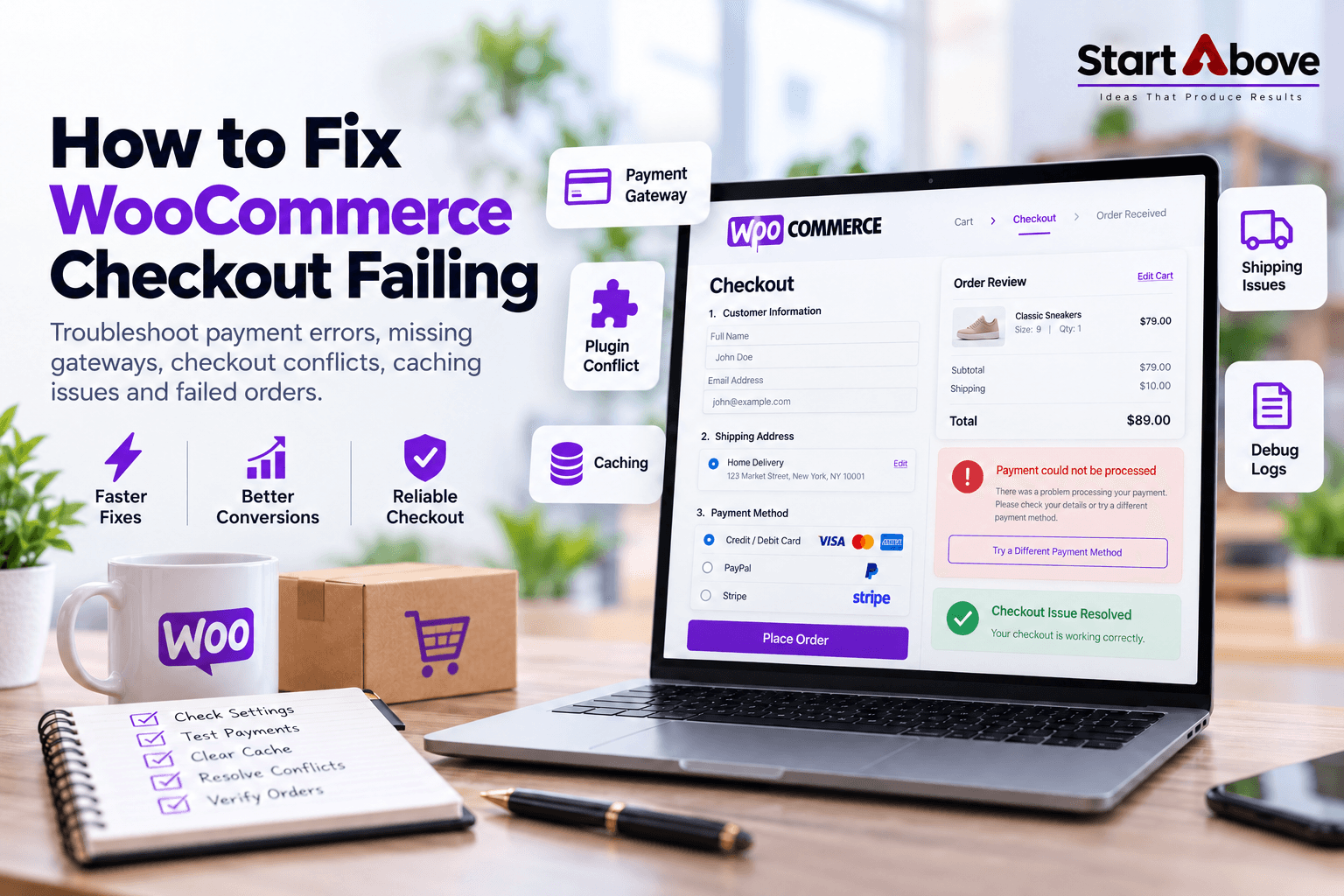

WooCommerce Checkout Failing? 8 Common Causes and How to Fix Them
Is your WooCommerce checkout failing when customers try to place an order? A checkout page that keeps loading, a missing payment option, an unexpected error message or an unsuccessful transaction can interrupt purchases and create uncertainty about whether a payment went through.
For an ecommerce business, checkout problems are more than technical inconveniences. They can cause abandoned carts, interrupted payments, customer dissatisfaction and lost sales opportunities. Even when customers are ready to purchase, a technical issue during the final stage can prevent the transaction from being completed.
Imagine a customer visiting your online store, selecting products, adding them to the cart and proceeding to checkout. After entering their shipping details and selecting a payment method, they click the Place Order button. Instead of receiving an order confirmation, the page displays an error or continues loading indefinitely.
The customer may not know whether the order was placed successfully or whether money was deducted from their account. If the same problem happens repeatedly, they may decide not to continue shopping.
Understanding why WooCommerce checkout is failing is the first step toward resolving these problems.
Common causes include payment gateway configuration errors, incompatible plugins, theme conflicts, caching issues, incorrect checkout page settings, shipping restrictions and server-related failures.
However, not every unsuccessful payment indicates that WooCommerce itself is malfunctioning. Sometimes the issue is caused by a bank decline, customer authentication failure, an unavailable product or an unsupported delivery location.
This guide explains the common reasons behind WooCommerce checkout failures, how to troubleshoot them safely, and how to maintain a reliable checkout experience for your customers.
Why Is WooCommerce Checkout Failing?
WooCommerce checkout is the final stage of the online purchasing process. It connects several important functions, including customer information, shipping calculations, product availability, discount validation, taxes, payment processing and order creation.
When a customer proceeds to checkout, WooCommerce must validate the information entered and communicate with relevant plugins and payment services.
If one of these components does not function as expected, checkout may be interrupted.
For example, a payment gateway might reject a transaction because of incorrect credentials. A shipping extension may prevent an order because the customer’s delivery address is outside a supported shipping zone.
Similarly, a JavaScript conflict could prevent the checkout page from updating order totals or processing the order submission.
The problem may occur before payment, during payment authorization or after the transaction has already succeeded.
Identifying the exact point of failure is important because the solution depends on the underlying issue.
Common Signs of WooCommerce Checkout Problems
| Checkout Symptom | Possible Cause |
|---|---|
| Checkout page does not load | Incorrect page settings, PHP errors or server issues |
| Checkout keeps spinning | JavaScript errors, caching conflicts or failed requests |
| Payment gateway is missing | Gateway settings, eligibility restrictions or compatibility issues |
| Payment failed message appears | Bank decline, payment gateway error or authentication failure |
| Order remains pending after payment | Delayed or unsuccessful payment confirmation |
| No shipping methods are available | Incorrect shipping zones or delivery restrictions |
| Place Order button does not respond | Form validation issues or JavaScript conflicts |
| Checkout page returns a 404 error | Incorrect URL, deleted page or permalink problem |
| Incorrect checkout totals | Tax, shipping, discount or caching configuration |
Before changing your website settings, identify the exact symptom.
Record the affected product, payment method, customer location, device and error message. Also check whether the issue started after a plugin update, theme modification or payment gateway configuration change.
If a payment may have succeeded, verify the transaction in the payment provider’s dashboard before asking the customer to try again.
This precaution can help prevent duplicate payments and unnecessary customer complaints.
8 Common Causes of WooCommerce Checkout Failing
Several technical issues and configuration problems can prevent customers from completing purchases.
The following are eight common causes and their recommended troubleshooting approaches.
1. WooCommerce Payment Gateway Configuration Problems
Payment gateway problems are among the most common reasons for WooCommerce checkout errors.
Online stores often depend on third-party payment providers to accept UPI, cards, net banking and other supported payment methods.
For Indian ecommerce businesses, payment integrations may include Razorpay, PhonePe or other compatible providers.
Payment processing can fail because of incorrect configuration, account restrictions, unsupported currencies, authentication problems or connectivity failures.
For example, a store administrator might accidentally configure live checkout using test credentials.
In such a situation, customers may be unable to complete real payments.
Similarly, the payment provider may restrict transactions if the merchant account requires additional verification or a particular payment method is unavailable.
How to Fix WooCommerce Payment Gateway Errors
Follow these steps to investigate payment gateway configuration.
Step 1: Log in to your WordPress dashboard.
Step 2: Navigate to WooCommerce → Settings → Payments.
Step 3: Confirm that the required payment gateway is enabled.
Step 4: Open the gateway settings and verify the configuration.
Step 5: Check whether the correct credentials are used for live or test mode.
Step 6: Review supported currencies, payment methods and customer locations.
Step 7: Open your payment provider’s dashboard and review transaction records, account status and error details.
If the gateway supports logging, enable the relevant diagnostic logs temporarily while troubleshooting.
According to the official WooCommerce Payment Troubleshooting Guide, payment errors should be investigated using gateway-specific information, order notes and relevant logs.
A declined transaction does not automatically mean that your website is broken.
The customer’s bank may reject a payment because of insufficient funds, incorrect authentication details or transaction restrictions.
Always verify the actual gateway response before changing website settings.
2. WooCommerce Plugin or Theme Conflicts
WooCommerce stores frequently use multiple plugins to provide additional ecommerce functionality.
These may include payment gateways, shipping calculators, discount tools, checkout field editors, customer login systems, inventory management extensions and order tracking integrations.
Although plugins improve store functionality, conflicts can occur when extensions interact unexpectedly.
For example, a checkout customization plugin may modify billing fields while another plugin applies different validation rules to those fields.
This can prevent customers from submitting an order.
Theme customizations may also affect checkout behavior, particularly when custom templates, scripts or checkout layouts are involved.
A plugin update can sometimes introduce compatibility changes that affect previously working functionality.
How to Identify WooCommerce Plugin Conflicts
The safest method is to perform compatibility testing on a staging website.
A staging website is a separate copy of your store that allows developers to investigate issues without disrupting real customers.
Follow this process:
- Create a recent backup of your website files and database.
- Prepare a staging copy of your store.
- Reproduce the checkout problem on staging.
- Temporarily deactivate nonessential plugins.
- Test the checkout process.
- Reactivate plugins individually.
- Repeat the checkout test after each change.
- Identify which plugin or combination of plugins causes the issue.
If required, temporarily switch to a default WooCommerce-compatible theme on staging to determine whether the active theme contributes to the problem.
Once the conflicting component has been identified, investigate its compatibility requirements.
Check whether an updated version, corrected configuration or developer-supported solution is available.
Important: Avoid deactivating payment, shipping or order-management plugins directly on a busy live store.
Doing so may interrupt customer purchases and create additional operational problems.
3. WooCommerce Checkout Caching and JavaScript Issues
Website caching helps improve loading speed by storing reusable content.
However, checkout pages contain customer-specific information that must remain accurate and dynamic.
Incorrect caching settings can interfere with shopping cart sessions, customer details, order totals or checkout requests.
For example, a customer may update the product quantity but continue seeing an outdated cart total.
In other situations, the checkout page may display an endless loading spinner because an important JavaScript file or background request fails.
JavaScript optimization features can also cause problems when scripts are delayed, combined or modified in ways that interfere with checkout functionality.
How to Fix WooCommerce Checkout Caching Issues
Check all caching systems used by your website.
These may include:
- WordPress caching plugins.
- Hosting-level caching.
- Content Delivery Network (CDN) caching.
- JavaScript optimization tools.
- Script delay and minification settings.
Ensure that dynamic WooCommerce pages are excluded from full-page caching where appropriate.
Typically, cart and checkout functionality requires special caching rules so that customers receive their own current session information.
For detailed configuration guidance, refer to the official WooCommerce Caching Documentation.
On staging, temporarily disable relevant JavaScript optimization settings and repeat the checkout test.
If the issue disappears, identify which script or configuration is responsible.
Rather than permanently disabling every optimization feature, configure suitable exclusions for the affected checkout functionality.
The goal is to maintain both good website performance and reliable payment processing.
4. WooCommerce Checkout Block Compatibility Issues
WooCommerce supports block-based checkout and traditional shortcode-based checkout experiences.
The Checkout block provides a modern interface for customers to enter their shipping and payment information.
However, not all third-party extensions support block-based checkout in the same way.
Some payment gateways and checkout customization tools were originally developed for the classic shortcode-based checkout.
If an installed extension is incompatible with the Checkout block, particular checkout features may not appear or work correctly.
For example, a payment gateway might be enabled in WooCommerce settings but remain unavailable on the checkout page.
How to Check Checkout Block Compatibility
Open your WordPress dashboard and locate the Checkout page.
Check whether the page uses the WooCommerce Checkout block or the classic shortcode.
Next, review the following:
- The installed WooCommerce version.
- The payment gateway plugin version.
- Whether the gateway supports block-based checkout.
- Whether custom checkout field plugins are compatible.
- Whether shipping and discount extensions support your checkout layout.
Official WooCommerce Checkout Block Documentation explains that incompatible payment gateways may not appear as available payment methods.
If a compatibility issue is identified, test a supported checkout configuration on staging.
Switching to classic checkout can be a useful diagnostic step when the required extensions support that layout.
However, changing checkout layouts may affect other customizations.
Always test payment methods, shipping calculations, order creation and notifications before implementing changes on the live store.
5. Incorrect WooCommerce Checkout Page Settings
WooCommerce requires properly configured pages to complete the shopping process.
If the assigned checkout page is deleted, modified incorrectly or missing essential content, customers may encounter errors.
Common symptoms include blank checkout pages, unexpected redirects, missing payment forms and 404 errors.
How to Verify WooCommerce Checkout Page Settings
Step 1: Log in to WordPress.
Step 2: Navigate to WooCommerce → Settings → Advanced.
Step 3: Locate the page setup section.
Step 4: Confirm that the correct Checkout page is assigned.
Step 5: Navigate to Pages → All Pages.
Step 6: Open the assigned checkout page.
Step 7: Check whether the required checkout functionality is present.
Depending on your website configuration, the checkout page should use the WooCommerce Checkout block or the classic shortcode:
[woocommerce_checkout]
If your checkout page returns a 404 error, review the permalink structure and any custom redirects.
Also investigate whether the issue started after a website migration, domain change or page URL modification.
Avoid immediately deleting and recreating the checkout page.
Existing links, payment return URLs and third-party integrations may depend on the original configuration.
After making corrections, verify checkout functionality across desktop and mobile devices.
6. Shipping Restrictions, Stock Problems and Checkout Validation
Sometimes WooCommerce checkout is not working because the customer’s order does not meet the store’s configured requirements.
These situations can appear to be technical failures even when the system is correctly enforcing a restriction.
For example, a customer may enter a delivery PIN code outside the store’s serviceable area.
If no shipping method is available for that location, the customer may be unable to complete the order.
Similarly, checkout can be interrupted when a product becomes unavailable or a required field fails validation.
How to Fix WooCommerce Shipping Errors
Navigate to WooCommerce → Settings → Shipping.
Review your shipping zones, shipping methods and relevant delivery rules.
Check whether:
- The customer address matches a configured shipping zone.
- A suitable shipping method is available.
- Shipping rates are calculated correctly.
- Product weights and dimensions are configured where required.
- Minimum-order conditions are satisfied.
- Delivery restrictions are communicated clearly.
- Third-party shipping plugins are functioning correctly.
For Indian ecommerce stores, PIN code validation is especially important.
Test valid six-digit PIN codes for both serviceable and non-serviceable locations.
For example, if a business delivers only within Pune or selected Maharashtra locations, ensure customers outside those regions receive a clear message.
The website should explain when delivery is unavailable rather than simply preventing checkout without feedback.
Check Inventory and Product Availability
Open the affected product in WooCommerce and review its inventory settings.
Confirm that the product remains available for purchase and that stock information is accurate.
Also inspect product variations where applicable.
A variation may be unavailable even when the parent product page is visible.
Check whether required checkout fields are correctly displayed and validated.
If you use custom address fields, PIN code validation or minimum-order restrictions, test those conditions individually.
Clear validation messages help customers understand what needs to be corrected before placing an order.
7. WooCommerce Server Errors and Failed Requests
WooCommerce relies on the WordPress hosting environment to process checkout requests.
If the server experiences PHP errors, insufficient resources, request timeouts or blocked connections, checkout functionality may fail.
Customers might see a blank page, endless spinner, unexpected error message or an unsuccessful order submission.
These issues can be difficult to identify without examining technical logs.
How to Investigate WooCommerce Server Problems
Start by reproducing the problem in a browser.
Open the browser’s developer tools and inspect the Console and Network tabs.
Look for JavaScript errors or failed checkout-related requests.
Then review relevant server and WooCommerce logs.
Important areas to investigate include:
- PHP error messages.
- Failed requests and response codes.
- Server timeouts.
- Resource limitations.
- Security rules blocking legitimate requests.
- Plugin-specific errors.
- WooCommerce system status information.
Navigate to WooCommerce → Status → Logs to access available diagnostic logs.
The exact information depends on the installed plugins and logging configuration.
If the problem appears server-related, share the relevant error details with your hosting provider or website developer.
Do not disable important security protections without identifying the specific blocked request.
Correcting the relevant configuration is safer than removing broad security restrictions.
8. WooCommerce Payment Webhook or Callback Failures
One of the most serious checkout problems occurs when a customer successfully completes payment but the WooCommerce order remains pending.
This situation can happen when the payment gateway processes a transaction but WooCommerce does not receive or correctly process the final payment confirmation.
Some payment gateways use callbacks or webhooks to communicate transaction updates.
If these notifications fail, arrive late or are rejected, the order status may not accurately reflect the payment result.
For example, the customer may complete payment through an external gateway and return to the website, but WooCommerce may still display the order as unpaid.
How to Fix WooCommerce Payment Confirmation Issues
First, open your payment gateway dashboard.
Locate the transaction using its payment reference.
Verify the transaction amount, payment status, date and associated WooCommerce order.
Next, check:
- Webhook or callback configuration.
- Notification endpoint accessibility.
- Webhook delivery history.
- Error responses from failed notifications.
- Gateway plugin logs.
- WooCommerce order notes.
If the gateway provides a documented option to retry failed notifications, follow the provider’s recommended process.
Never mark an order as paid without verifying the actual transaction.
Similarly, do not immediately ask the customer to make another payment if the original transaction may have succeeded.
This helps prevent duplicate charges and incorrect order records.
How to Fix WooCommerce Checkout Failing Step by Step
After identifying possible causes, use a structured troubleshooting process.
Changing multiple settings simultaneously makes it difficult to determine which modification resolved the issue.
A controlled approach helps reduce unnecessary downtime and protects existing customer orders.
Step 1: Create a Complete Website Backup
Before making significant changes, create a backup of your WooCommerce website.
Your backup should include website files, themes, plugins, uploaded content and the database.
The WooCommerce database contains important information such as products, customer records, orders and store configuration.
Confirm that your backup is recent and that a restoration process is available.
For stores actively receiving purchases, restoring an old database can remove orders placed after the backup was created.
Therefore, disruptive testing should normally take place on staging rather than the live website.
Step 2: Reproduce the Exact Checkout Problem
Try to recreate the issue using the same conditions reported by the customer.
Test the relevant product, payment method and delivery location.
Compare checkout behavior on different devices and browsers.
Useful test scenarios include:
- Mobile checkout versus desktop checkout.
- Guest checkout versus logged-in checkout.
- Different payment methods.
- Different delivery locations.
- Fresh browser sessions.
- Different products and variations.
For example, if Cash on Delivery works but online payment fails, investigate the payment gateway configuration.
If the problem occurs only for certain PIN codes, review shipping rules.
If every order fails regardless of payment method, a broader checkout or server issue may be involved.
Change one condition at a time and document the results.
Step 3: Review WooCommerce Orders and Error Logs
Navigate to WooCommerce → Orders.
Open the affected order, if one was created, and examine its status and available order notes.
Common WooCommerce order statuses include Pending payment, Processing, On hold, Completed, Cancelled, Refunded and Failed.
Each status represents a different stage or outcome of order processing.
For example, a pending order may indicate that payment has not yet been confirmed.
A failed order may indicate an unsuccessful transaction, although the specific reason should be verified.
Review relevant payment gateway records alongside WooCommerce order notes.
For additional guidance, refer to the official WooCommerce Order Troubleshooting Guide.
When sharing logs with developers or support teams, remove API credentials, payment secrets and unnecessary customer information.
Step 4: Verify Checkout and Payment Settings
Review the settings associated with the observed problem.
If payment options are missing, check gateway availability and compatibility.
If shipping is unavailable, review shipping zones.
If checkout displays a loading spinner, investigate caching and failed requests.
If the checkout page is blank, verify page assignments and server logs.
Make one change at a time.
After each adjustment, repeat the original test to confirm whether the issue has been resolved.
Step 5: Test Plugin and Theme Compatibility
If the problem remains unresolved, investigate plugin conflicts on staging.
Identify recent updates, newly installed extensions and custom modifications.
Temporarily deactivate nonessential plugins and repeat the checkout test.
Reactivate them one by one to identify the conflicting component.
If necessary, test a default compatible theme.
When the cause is identified, apply an appropriate fix rather than unnecessarily replacing multiple plugins.
Step 6: Check Website Performance and Server Responses
If checkout remains slow or unresponsive, investigate website performance.
Look for failed requests, PHP errors, server timeouts or security restrictions.
Review hosting logs and browser developer tools.
A slow checkout may involve several factors, including external payment service response times and resource-intensive plugins.
Correct the identified problem and repeat testing.
Avoid making unrelated performance changes during the investigation.
Step 7: Test the Complete Order Journey
Once you have applied the fix, verify the entire checkout process.
Do not stop testing simply because the checkout page loads successfully.
A complete purchase test should confirm that customer information, shipping, payment and order management work together correctly.
| Test Area | Expected Result |
|---|---|
| Product selection | Correct product, variation and quantity |
| Cart totals | Accurate subtotal and discounts |
| Shipping | Correct delivery options and charges |
| Billing details | Valid information accepted |
| Payment | Expected transaction result |
| Order creation | Order generated with appropriate status |
| Inventory | Stock adjusted correctly |
| Notifications | Expected customer and administrator emails sent |
| Integrations | Connected order systems updated correctly |
Use payment gateway test mode on staging wherever supported.
If a live transaction test is necessary, coordinate it carefully and verify the payment outcome.
Specific WooCommerce Checkout Errors and Practical Fixes
Some checkout issues produce recognizable symptoms.
Understanding these symptoms can help narrow the investigation and identify the most relevant settings.
WooCommerce Checkout Keeps Spinning
An endless spinner often means the checkout page is waiting for a request or script to complete.
Possible causes include JavaScript errors, incorrect caching configuration, failed requests and server limitations.
Start by reviewing the browser Console and Network tabs.
Identify whether a particular request is failing or taking unusually long.
Then inspect relevant logs and optimization settings.
Avoid repeatedly clearing caches without investigating the underlying problem.
WooCommerce Place Order Button Not Working
If the Place Order button does not respond, check whether required fields are complete.
A hidden required field or incompatible checkout customization can prevent successful submission.
Review validation messages and browser errors.
Also confirm that the selected payment method is available and properly configured.
If the issue occurs after a plugin update, investigate compatibility on staging.
WooCommerce Payment Failed but Money Deducted
This situation requires careful verification.
A payment may have succeeded at the gateway even though WooCommerce did not update the order correctly.
First, check the payment provider’s transaction dashboard.
Match the payment reference and amount with the affected order.
Then investigate webhook delivery and order-processing logs.
Do not request another payment before confirming the original transaction status.
If a refund or correction is necessary, follow the payment provider’s documented procedures.
WooCommerce Payment Methods Not Showing
Payment methods can disappear because the gateway is disabled, unavailable under the customer’s conditions or incompatible with the checkout layout.
Review gateway settings, currency support and customer eligibility requirements.
Check whether the issue started after changing from classic checkout to block-based checkout.
Test the correct configuration on staging.
WooCommerce Checkout Page Shows a 404 Error
A 404 error may indicate that the assigned checkout page is unavailable or its URL is incorrectly configured.
Confirm that the Checkout page exists and is published.
Review WooCommerce page assignments, permalink settings and custom redirects.
If the error started after a domain migration, inspect URLs and related configuration.
WooCommerce Checkout Failing After an Update
Updates can occasionally expose compatibility problems involving payment plugins, themes, custom code or checkout extensions.
If checkout stops working immediately after an update, record which components changed.
Review plugin versions and available error logs.
Test a compatible configuration on staging.
Avoid rolling back the entire website without considering orders or customer activity that occurred after the update.
For a safer updating process, read our related guide, How to Update WooCommerce Safely Without Breaking Your Online Store.
How to Prevent WooCommerce Checkout Failing Again
Resolving the immediate issue is important, but preventing recurring failures is equally valuable.
Reliable checkout functionality depends on ongoing maintenance, compatibility testing and regular monitoring.
1. Keep WooCommerce and Plugins Updated
WooCommerce, WordPress, themes and extensions receive updates that may include bug fixes, compatibility improvements and security changes.
However, applying updates without reviewing compatibility can introduce unexpected problems.
Before major updates, check version requirements and release information.
Test essential checkout functions on staging.
Maintain a recovery plan in case an update affects payment processing.
2. Maintain Regular Website Backups
Schedule backups based on your store’s transaction volume and business requirements.
A frequently updated ecommerce store may require more frequent backups than a simple informational website.
Store backup copies securely and verify that they can be restored.
Backups are especially important before plugin changes, theme modifications and major software updates.
3. Avoid Unnecessary Checkout Customizations
Installing multiple plugins that modify the same checkout features can increase complexity.
For example, several extensions may attempt to control billing fields, shipping restrictions or payment availability.
Review whether each plugin provides necessary functionality.
Choose maintained extensions with appropriate compatibility support.
Remove unused tools through a controlled process to reduce unnecessary dependencies.
4. Test Checkout After Major Website Changes
Checkout testing should be part of routine ecommerce maintenance.
Perform tests after modifying payment gateways, shipping rules, taxes, discount settings, checkout fields or caching configuration.
Also test after WooCommerce updates and major theme changes.
Use realistic scenarios involving products, payment methods and delivery locations relevant to your store.
A successful test should verify the entire purchase journey rather than only checking whether the page loads.
5. Monitor Failed Orders and Payment Trends
Review failed and pending orders regularly.
Look for repeated issues involving specific gateways, products or delivery locations.
For example, a sudden increase in failed prepaid orders may indicate a payment gateway problem.
A pattern affecting customers from one region may suggest shipping configuration issues.
Maintain records of the symptoms and troubleshooting results.
This makes it easier to identify recurring problems and investigate them efficiently.
6. Optimize WooCommerce Checkout for Mobile Devices
Many customers browse and purchase products using smartphones.
A checkout interface that works on desktop may behave differently on smaller screens.
Responsive design issues, overlapping buttons or difficult form fields can interrupt purchases.
Test checkout on different mobile screen sizes.
Ensure that customers can enter addresses, select payment methods, review order totals and submit orders without interface problems.
Also confirm that payment authentication screens and redirects work properly on supported mobile browsers.
7. Verify Notifications and Order Integrations
Successful payment processing is only one part of ecommerce order management.
Your website may also use shipping integrations, inventory software, email notifications or order tracking systems.
After checkout, verify that the relevant systems receive accurate information.
For example, a successfully paid order should reach the appropriate order management workflow.
Shipping and inventory updates should follow the store’s configured rules.
Consistent integration testing can reduce situations where payments succeed but order fulfilment information is incomplete.
8. Provide Clear Customer Support Options
Customers experiencing payment problems should know how to contact your business.
Display an appropriate support email address, contact form or customer assistance option.
Encourage customers to report the error message and approximate transaction time.
Do not request sensitive payment information such as card passwords, OTPs or full card numbers.
Providing clear assistance can help customers resolve uncertainties and prevent unnecessary repeated payment attempts.
Why Fixing WooCommerce Checkout Errors Matters for Ecommerce Growth
Your checkout page plays an important role in converting website visitors into paying customers.
A customer may spend considerable time exploring products, comparing options and deciding to purchase.
However, if the payment process fails or checkout becomes confusing, the purchase may not be completed.
Repeated checkout problems can damage customer confidence.
This is particularly concerning when a customer does not know whether a payment has succeeded.
Reliable checkout functionality supports a smoother shopping experience through accurate totals, clear shipping options, working payment methods and understandable validation messages.
It also benefits store administrators by reducing manual investigation and incorrect order records.
When payment confirmations, inventory changes and notifications work correctly, businesses can manage their operations more efficiently.
For ecommerce businesses using WooCommerce, checkout reliability should be treated as an ongoing maintenance priority.
Regular testing, controlled updates and structured troubleshooting can help maintain consistent order processing as the business grows.
FAQs About WooCommerce Checkout Failing
1. Why is my WooCommerce checkout failing?
WooCommerce checkout may fail because of payment gateway issues, plugin conflicts, incorrect checkout settings, caching problems, shipping restrictions, server errors or failed payment notifications. Identify the exact error before making changes.
2. How do I fix WooCommerce checkout not working?
Start by checking payment settings, checkout page assignments, order notes and relevant logs. Reproduce the issue and test possible causes on staging. Verify the complete purchase journey after applying the fix.
3. Why does WooCommerce checkout keep spinning?
An endless spinner may be caused by JavaScript errors, failed requests, incorrect caching or server limitations. Review browser Console and Network information, along with relevant website logs.
4. Why are WooCommerce payment methods not showing?
Payment methods may be missing because the gateway is disabled, unavailable for the customer, or incompatible with the Checkout block. Review payment settings and plugin compatibility documentation.
5. Why was my customer charged but the WooCommerce order remained pending?
Payment confirmation may have been delayed or unsuccessfully processed. Verify the actual transaction in the payment gateway dashboard and investigate webhook or callback delivery before modifying the order.
6. Can a WooCommerce update cause checkout problems?
Yes. An update may expose compatibility problems involving themes, extensions or custom code. Test important updates on staging and maintain suitable backups and a recovery plan.
7. How do I check WooCommerce checkout errors?
Review relevant order notes under WooCommerce orders and inspect available logs through WooCommerce → Status → Logs. Browser developer tools may also help identify JavaScript and request errors.
8. Should I disable all WooCommerce plugins to fix checkout?
Plugin conflict testing can help isolate problems, but disruptive testing should generally be performed on staging. Disabling important plugins on a live store may interrupt customer transactions and order management.
9. Can caching cause WooCommerce payment failures?
Incorrect caching or JavaScript optimization can interfere with checkout functionality. Review relevant page cache exclusions and optimization settings to identify whether they contribute to the problem.
10. Why is WooCommerce not showing shipping options?
Shipping options may be unavailable because the customer’s address does not match a configured shipping zone, required conditions are not satisfied or a delivery plugin applies restrictions.
11. How do I fix a WooCommerce checkout 404 error?
Confirm that the Checkout page exists, is published and is correctly assigned under WooCommerce settings. Review permalink configuration, redirects and recent URL changes.
12. What should I do if WooCommerce checkout fails only on mobile?
Test different mobile browsers and screen sizes. Check for responsive design issues, JavaScript errors, blocked buttons and payment authentication problems. Compare the mobile behavior with desktop checkout.
13. Why is WooCommerce checkout failing after installing a new plugin?
The new plugin may introduce compatibility issues or change checkout-related functionality. Reproduce the issue on staging and perform controlled plugin conflict testing to identify the cause.
14. How can I prevent WooCommerce checkout errors in the future?
Maintain regular backups, review plugin compatibility, test updates on staging, monitor failed orders and verify the complete checkout journey after significant website changes.
Restore a Reliable WooCommerce Checkout with Start Above LLP
Is your WooCommerce checkout failing or preventing customers from completing purchases?
Checkout errors can interrupt customer orders, create uncertainty around payments and affect ecommerce operations.
Whether the problem involves payment gateway configuration, checkout plugin conflicts, shipping restrictions, caching errors or server-related issues, identifying the root cause is essential.
At Start Above LLP, we provide WooCommerce website development, ecommerce troubleshooting and website maintenance services for businesses looking to improve their online store functionality.
Our team can assist with reviewing checkout configuration, investigating payment-related errors, identifying plugin compatibility issues and implementing appropriate technical improvements.
If your online store is experiencing checkout difficulties, contact Start Above LLP to discuss your website and technical support requirements.
Contact Start Above LLP
Call: +91 88882 73239 / +91 9028317379
Email: info@startabove.in
Website: https://www.startabove.in/
Location: Pune, Maharashtra
Keep your WooCommerce checkout properly configured, regularly tested and ready to support a reliable online shopping experience.