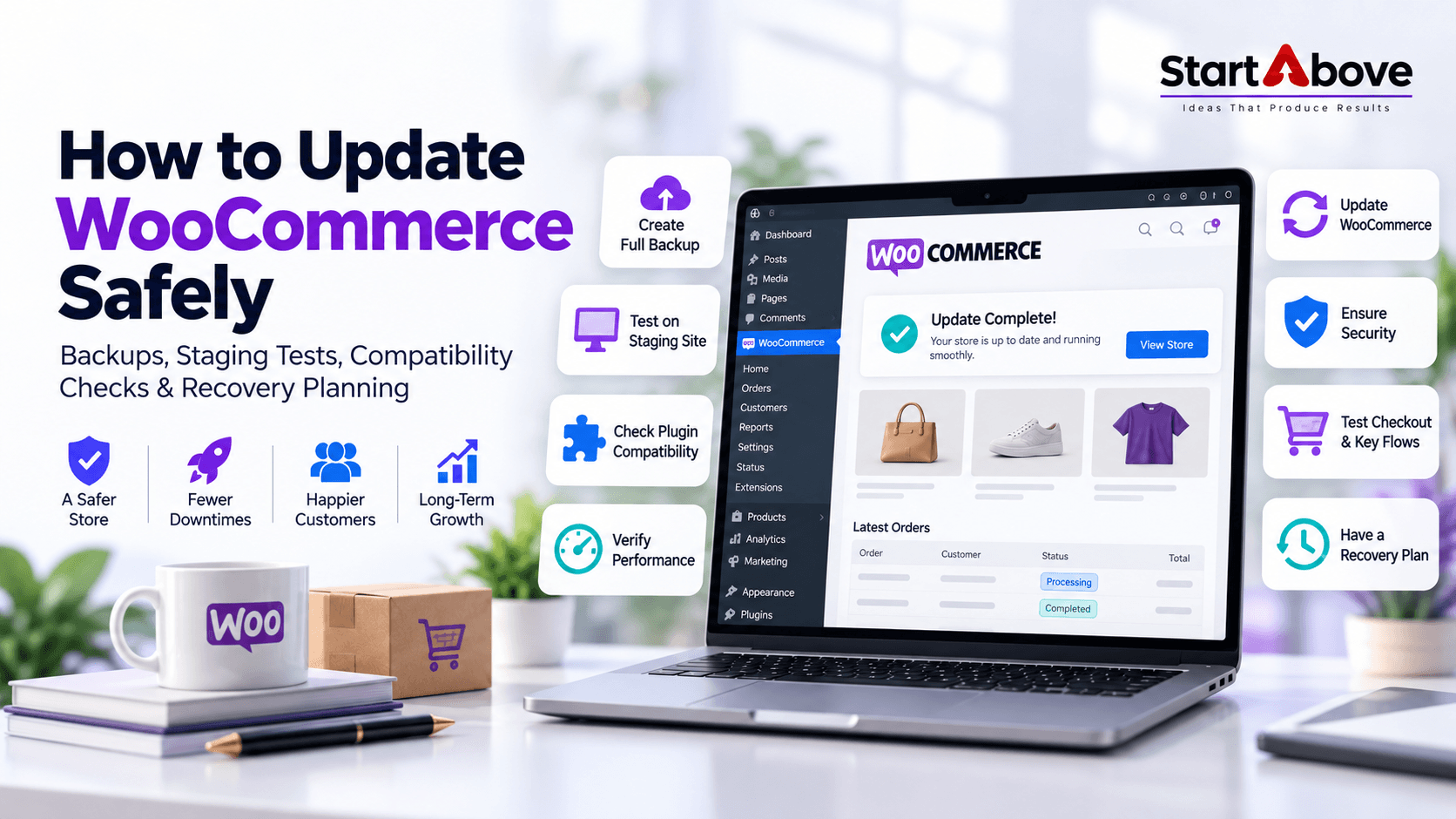

Learning how to update WooCommerce safely helps you protect checkout, customer information and everyday store operations. An update can affect more than the WooCommerce plugin: your theme, payment gateway, extensions and custom code also need to work together.
The safest approach is to create a recoverable backup, test the changes on staging, apply the tested updates during a controlled maintenance window and verify the live store before reopening checkout.
This guide explains what business owners should check before, during and after a WooCommerce update.
Why WooCommerce Updates Need Careful Planning
An online store depends on several connected systems. A customer selects a product, applies a discount, chooses delivery, pays and receives confirmation. A problem anywhere in that journey can interrupt an order.
Updates may expose incompatibilities between WooCommerce and third-party plugins or themes. WooCommerce’s documentation confirms that compatibility with every third-party product cannot be guaranteed. WooCommerce
The goal is to keep your store current while checking that its essential workflows continue functioning.
How to Update WooCommerce Safely: Preparation Checklist
Create a Complete, Restorable Backup
Before making changes, back up both your website files and database. Files contain your plugins, themes, uploads and customizations; the database contains information such as products, orders, customers and settings.
A product export alone is not a complete store backup.
Check that:
- The backup completed successfully.
- You know its creation time and storage location.
- You have the access needed to restore it.
- The restoration process has been tested on a separate environment.
WordPress recommends backing up both files and the database, keeping multiple backup copies and storing copies in different locations. Developer.WordPress.org
Review Compatibility and Release Notes
Record your current WordPress, WooCommerce, theme and extension versions. Review the target release notes and confirm that essential extensions support the planned version.
Pay particular attention to payment gateways, shipping tools and anything that changes checkout. Check hosting requirements too.
A compatibility label is useful evidence, but it does not replace testing your store’s configuration.
Protect Custom Code
Identify custom snippets, checkout modifications and theme overrides before updating.
Avoid keeping custom changes directly inside WooCommerce’s plugin files or a parent theme. Updates can overwrite those files. WooCommerce recommends a separate plugin for suitable functional customizations and a child theme for theme changes. WooCommerce
Test the WooCommerce Update on a Staging Site
A staging site is a separate copy of your store used for testing. WooCommerce recommends testing updates there before applying them to production. WooCommerce
Prepare Staging for Safe Testing
Use a recent copy of the live store and keep staging access restricted. Before testing:
- Enable payment gateway sandbox or test mode.
- Prevent test emails from reaching real customers.
- Disconnect or sandbox fulfilment, accounting and marketing integrations.
- Check how subscription renewals and other scheduled processes behave.
- Ensure staging cannot process real payments accidentally.
Ask your developer or hosting provider to verify these controls if you are unsure.
Test Complete Customer Journeys
Checking the homepage is not enough. Build tests around how customers actually purchase.
| Area | What to Verify |
| Products | Images, prices, variations and stock availability |
| Cart | Add, remove and change item quantities |
| Discounts | Valid coupons and applicable restrictions |
| Checkout | Guest checkout, account checkout and required fields |
| Payments | Successful, failed and cancelled payment scenarios |
| Delivery | Shipping charges, serviceable locations and pickup |
| Orders | Correct totals, status and inventory changes |
| Communications | Customer confirmation and staff notifications |
| Integrations | Order transfer to connected business systems |
Include mobile testing and your most important product types. For example, a clothing store should test size and colour selections, while a wholesale store should verify quantity pricing.
Record the versions, update sequence and results so the same procedure can be repeated on production.
Apply the Tested Updates to Your Live Store
Choose a Controlled Maintenance Window
Schedule the work when order activity is low and technical support is available.
Temporarily restrict checkout using an appropriate maintenance or Coming soon setup. Confirm the restriction works for ordinary visitors. Allow active purchases to finish and take a fresh backup before starting.
Do not overwrite the live database with an older staging database. Orders, customers and stock may have changed while testing was underway. Repeat the tested update procedure on production or use a deployment process that explicitly preserves current business data.
Update WooCommerce and Complete Database Changes
Follow the sequence validated on staging and any dependency instructions from extension developers.
In WordPress, open Plugins → Installed Plugins, locate WooCommerce and select Update now. Wait for completion. If prompted, run the WooCommerce database update and monitor its progress.
Complete the tested extension and theme updates, then verify the live store before reopening checkout. WooCommerce’s current guidance includes these steps within a controlled update window. WooCommerce
Verify the Live Store Before Reopening
Use an appropriate payment test method or an agreed low-value transaction. Confirm payment, order creation, stock changes and notifications.
Check caches through your hosting or caching tools so visitors receive the updated site. Review error logs and integration activity.
Reopen checkout only after essential checks pass. Continue monitoring incoming orders and payment records afterward.
What to Do If a WooCommerce Update Breaks Your Store
Identify the Failure on Staging
Record the error, affected page and steps needed to reproduce it. Review logs rather than repeatedly changing settings without a clear diagnosis.
On staging, test with a default compatible theme and deactivate nonessential plugins. Reactivate plugins individually, repeating the failing workflow after each change. This helps isolate conflicts without disrupting live customers. WooCommerce
Restore Carefully When Necessary
Keep checkout restricted if orders or payments are unreliable. Before restoring a backup, identify transactions and orders created after that backup.
An older database restore can remove recent orders or stock changes. Reconcile payment gateway records and involve your developer before proceeding.
Installing an older WooCommerce plugin does not necessarily reverse database migrations. WooCommerce’s downgrade guidance calls for a matching database backup and testing on staging. WooCommerce
FAQs About Updating WooCommerce Safely
Can I update WooCommerce without a staging site?
It is technically possible, but you lose the opportunity to detect problems before customers encounter them. Arrange staging through your host or developer, particularly when your store has custom checkout features or several integrations.
Will updating WooCommerce delete my products or orders?
A normal update is intended to retain store data. However, failed updates and incorrect restoration or deployment procedures can cause problems. Maintain a complete backup and avoid replacing current order data with an older copy.
Should I enable automatic WooCommerce updates?
Choose based on your testing, backup and monitoring arrangements. A customized store needs an update process that verifies checkout and integrations. Automatic installation alone does not provide that verification.
How often should I update WooCommerce?
Review updates regularly and schedule maintenance according to your store’s needs. Prioritize relevant security fixes and critical functionality fixes, while retaining backup and testing checks.
How long does a safe WooCommerce update take?
The installation may be quick, but preparation, database changes and verification vary by store size and complexity. Estimate the maintenance window from your staging test rather than assuming a fixed duration.
Get Help Updating Your WooCommerce Store
Need help planning a WooCommerce update or checking your store’s compatibility? Contact Start Above LLP to discuss your ecommerce website, technical requirements and maintenance needs.
Call: +91 88882 73239 / +91 9028317379
Email: info@startabove.in
Website: www.startabove.in
Location: Pune, Maharashtra.